Stream using free of charge Mixxx application
May 19, 2021
0
11
Mixxx is one of the easiest free tools for broadcasting live audio to an internet radio station. It works on Windows, macOS and Linux, and it can connect directly to Shoutcast or Icecast servers.
If you want to play music live, mix tracks like a DJ, use a microphone and send everything to your online radio stream, Mixxx is a great place to start. In this guide, we will show you how to broadcast internet radio with Mixxx and a Shoutcast server.
Mixxx is free DJ software for live mixing and audio playback. It includes features such as decks, playlists, microphone input, effects, cue points and live broadcasting. For internet radio, Mixxx can be used as a live encoder. This means it sends audio from your computer to your radio server, and the server delivers that stream to your listeners.
If you do not have a stream server yet, you can create a free Shoutcast server with Free-Shoutcast.com. You can use Mixxx for:
For most beginners, a Shoutcast server and MP3 stream are the simplest setup. Before configuring Mixxx, prepare a few things:
Download Mixxx from the official website: https://mixxx.org/download. Install the stable version for your operating system. After installation, open Mixxx and add your music library. You can also prepare playlists before going live.
Before your first public broadcast, it is a good idea to test everything with headphones and a short private stream.
To connect Mixxx to your radio server:
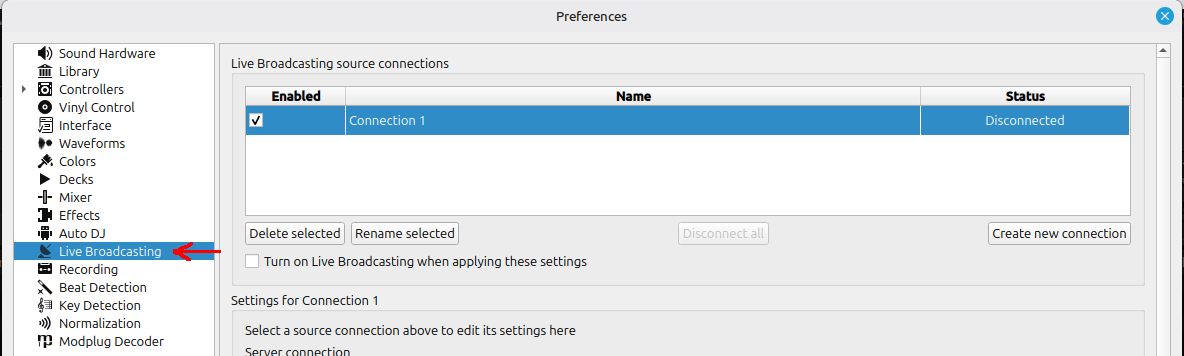
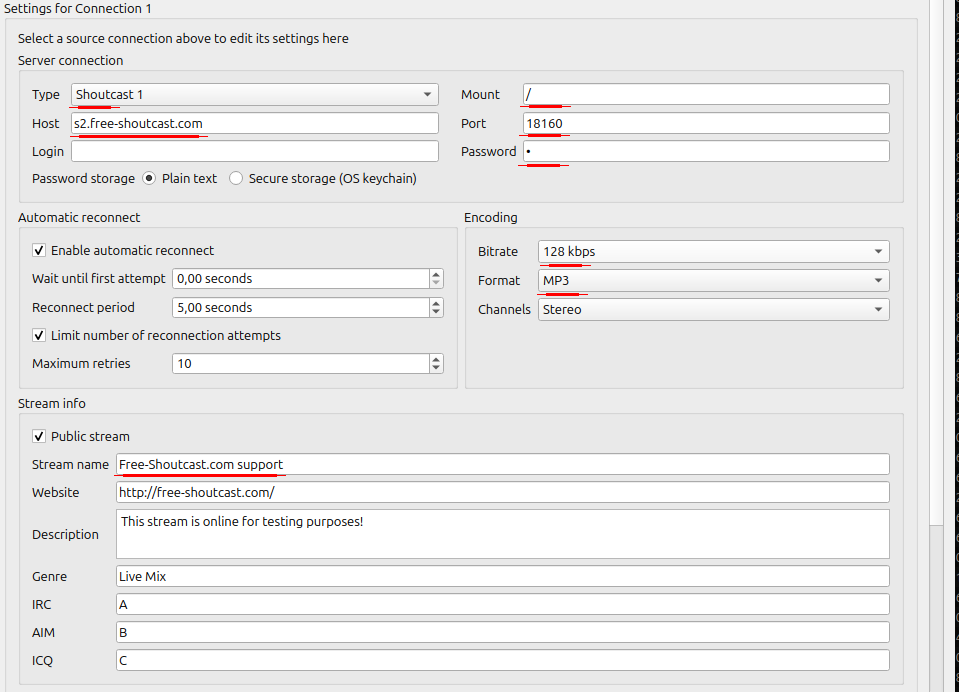
For a Shoutcast server, you will usually need:
Your hosting panel should provide these details. If you use Free-Shoutcast.com, copy the connection details from your server panel and paste them into Mixxx.
For Shoutcast broadcasting with Mixxx, MP3 is usually the best choice. It is widely supported and works with most browsers, players, apps and devices. Recommended settings:
For talk radio, you can use a lower bitrate such as 64 kbps or 96 kbps. For music radio, 128 kbps MP3 is a safe and practical starting point. If you use Icecast, Mixxx can also work with OGG Vorbis. However, for a public radio station, MP3 is usually easier for listeners.
In the live broadcasting settings, add basic information about your station:
You can also configure metadata, so listeners can see the current artist and title in compatible players. Good metadata makes your station look more professional and helps listeners understand what is playing.
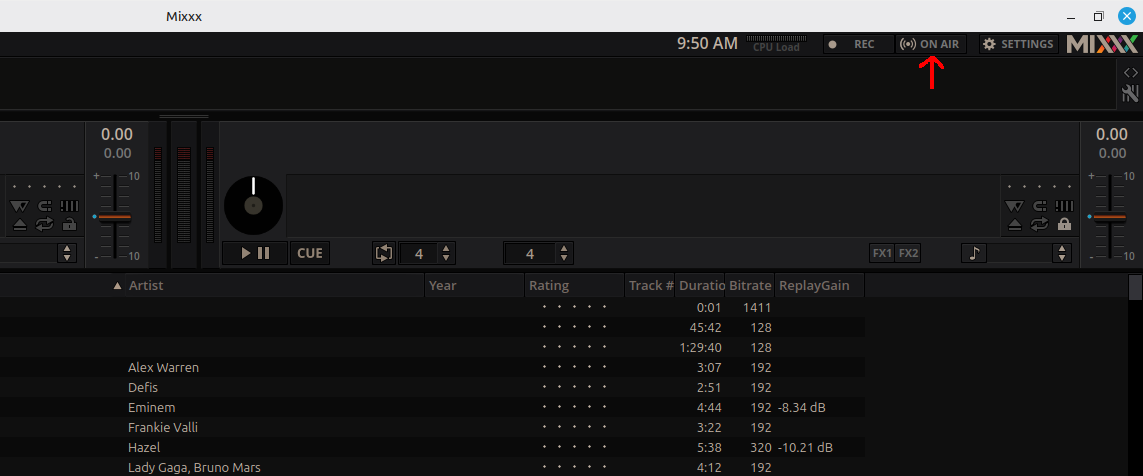
After saving your settings, start playing audio in Mixxx. Then enable live broadcasting. Check your Shoutcast server panel to see if the stream is connected. Open your stream URL in a browser or media player and listen for a few minutes. Before promoting the stream, check:
Do not skip this step. A short test can save you from a very awkward first live show.
Mixxx gives you more control than a simple encoder, but it also means you should prepare your show before going live. A few simple tips:
If you want your station to play automatically when you are offline, use our ShoutCast AutoDJ plan instead of keeping Mixxx running all day. You can read more in our article uploading audio to your AutoDJ.
Mixxx is best for live broadcasting. AutoDJ is best for automatic 24/7 playback. Use Mixxx when:
Use AutoDJ when:
Many stations use both. AutoDJ plays music most of the time, and Mixxx is used for live shows.
Mixxx is a simple and powerful way to broadcast live internet radio. If you already have a Shoutcast server, you only need to enter your server details, choose MP3, set your bitrate and start streaming. Start with a short test broadcast, check your stream on different devices and then go live. With Mixxx and Free-Shoutcast.com, you can create a live internet radio show without expensive studio equipment. Detailed Mixxx documentation can be found on official website.
For most Free-Shoutcast users, the recommended setup is:
Leave a Reply